



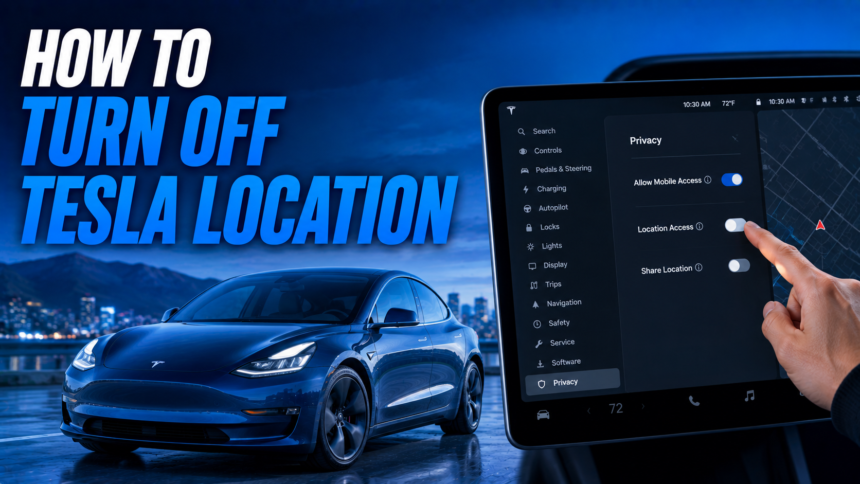
Every modern Tesla is essentially a computer on wheels, constantly communicating with Tesla’s servers to power features like navigation, remote monitoring, and theft protection. Location sharing is at the heart of many of these features, but not everyone wants their vehicle’s whereabouts tracked and shared at all times.
- 2. Understanding Tesla’s Location Features
- 2.1 Location Sharing vs. GPS Navigation
- 2.2 What Data Tesla Collects and Why
- 2.3 Who Can See Your Location
- 3. How to Turn Off Location Sharing (Step-by-Step)
- 3.1 From the Touchscreen (In-Car)
- 3.2 From the Tesla Mobile App
- 3.3 Differences Across Tesla Software Versions
- 4. What Happens When You Turn Off Location Sharing
- 4.1 Features That Stop Working
- 4.2 Features That Still Work
- 4.3 Impact on Navigation and Traffic Updates
- 5. Turning Off Specific Location-Based Features
- 5.1 Disabling Sentry Mode Location Alerts
- 5.2 Turning Off Location Sharing with Family or Friends
- 5.3 Disabling Location for Third-Party Apps
- 6. Privacy Considerations
- 6.1 Does Turning Off Sharing Stop Tesla From Collecting Data Entirely?
- 6.2 Tesla’s Data Privacy Policy Overview
- 6.3 How to Request or Delete Your Data
- 7. Pros and Cons of Turning Off Location Sharing
- 8. Common Issues and Troubleshooting
- 8.1 Location Toggle Not Saving
- 8.2 App and Car Showing Different Settings
- 8.3 Location Still Showing After Turning It Off
- 9. Frequently Asked Questions
- 10. Conclusion
- Related Articles
People look into how to turn off Tesla location for a variety of reasons. Some are simply privacy-conscious and don’t like the idea of their movements being logged. Others are preparing to sell, lease, or gift their vehicle and want to remove personal data before handing over the keys. Some parents or car-sharing households want to limit who can see the car’s location at any given moment.
Whatever your reason, this guide covers the full picture: how to disable location sharing from both the touchscreen and the Tesla app, what features will stop working once you do, and how to weigh the privacy benefits against the practical trade-offs.
2. Understanding Tesla’s Location Features
Before switching anything off, it helps to understand what “location sharing” actually means in a Tesla, because it’s not just one single setting.
2.1 Location Sharing vs. GPS Navigation
It’s easy to confuse location sharing with GPS navigation, but they serve different purposes. GPS navigation uses your car’s position to give you turn-by-turn directions, traffic updates, and route planning. Location sharing, on the other hand, controls whether that position data is shared with the Tesla app, other drivers on your account, or Tesla’s backend systems for features like Sentry Mode alerts and vehicle tracking. Turning off location sharing does not disable your car’s built-in GPS chip; it simply limits where and how that positional data is transmitted and displayed.
2.2 What Data Tesla Collects and Why
Tesla collects location data to enable a range of conveniences and safety features: real-time vehicle tracking through the mobile app, Sentry Mode notifications when the car detects suspicious activity nearby, roadside assistance dispatch, and even software diagnostics. This data also helps Tesla improve features like Autopilot and Full Self-Driving through fleet learning, though this is generally separate from the location-sharing toggle discussed here.
2.3 Who Can See Your Location
Depending on your settings, several parties could potentially access your Tesla’s location:
| Party | What They Can See | Controlled By |
|---|---|---|
| You (via Tesla App) | Real-time car location, drive history | Location Sharing toggle |
| Family/Friend drivers on your account | Car’s current location if sharing is enabled | Location Sharing + Family Sharing settings |
| Tesla Inc. | Location data for diagnostics, safety, and service | Data privacy settings |
| Insurance providers (if enrolled) | Driving location/behavior for telematics-based insurance | Tesla Insurance app permissions |
3. How to Turn Off Location Sharing (Step-by-Step)
Now let’s get into the actual process. There are two main places you can adjust this: directly on your car’s touchscreen, or through the Tesla mobile app.
3.1 From the Touchscreen (In-Car)
- Tap “Controls” on your touchscreen (or the car icon, depending on your model).
- Navigate to Settings.
- Select Safety & Security.
- Find Location Sharing and toggle it Off.
Some older software versions may show this under a slightly different path, such as Controls → Safety → Location Sharing, but the setting itself functions the same way regardless of where it’s nested in the menu.
3.2 From the Tesla Mobile App
If you prefer managing settings remotely rather than from inside the car, the Tesla app offers the same control:
- Open the Tesla app on your phone.
- Tap on your vehicle, then go to Settings.
- Select Vehicle.
- Toggle Location Sharing to Off.
Once turned off here, your car’s live location will no longer appear on the app’s map view.
3.3 Differences Across Tesla Software Versions
Tesla frequently updates its software, and menu layouts occasionally shift after major updates. If you can’t find “Location Sharing” exactly where described above, try searching your settings menu directly (many Tesla touchscreens include a search bar at the top of the Settings page) or check under Safety and Security as a fallback. The core functionality remains consistent even if menu wording changes slightly between updates.
4. What Happens When You Turn Off Location Sharing
Turning off location sharing isn’t just a privacy switch, it also affects functionality. It’s important to understand the trade-offs before committing.
4.1 Features That Stop Working
Once disabled, several location-dependent features become limited or unavailable:
- Find My Car: You won’t be able to locate your vehicle through the app.
- Sentry Mode location alerts: Notifications tied to where suspicious activity occurred may be reduced.
- Theft tracking assistance: Tesla and law enforcement have a harder time locating a stolen vehicle without location data.
4.2 Features That Still Work
Despite turning off sharing, your car remains fully drivable and most core functions stay intact. Charging, climate control scheduling (when triggered manually), and basic vehicle operation are unaffected, since these don’t rely on external location transmission to function.
4.3 Impact on Navigation and Traffic Updates
In-car navigation may still work using onboard GPS for basic routing, but real-time traffic updates, live rerouting, and Supercharger availability predictions typically rely on connectivity and location data being shared with Tesla’s servers. Disabling location sharing can noticeably reduce the accuracy and usefulness of these features.
5. Turning Off Specific Location-Based Features
Rather than disabling everything at once, some owners prefer a more targeted approach.
5.1 Disabling Sentry Mode Location Alerts
You can keep Sentry Mode active for security recording while limiting how much location detail is shared in alerts, by adjusting notification preferences separately from the main location toggle.
5.2 Turning Off Location Sharing with Family or Friends
If your Tesla account includes shared drivers, you can manage their visibility individually. This is especially useful for households where one driver wants privacy from others without disabling location entirely for the primary account holder.
5.3 Disabling Location for Third-Party Apps
If you’ve connected your Tesla to third-party apps or services (such as insurance telematics apps or custom Tesla API integrations), you’ll need to revoke their access separately, usually through your Tesla account’s third-party app permissions page online, since the in-car toggle doesn’t always extend to external integrations.
6. Privacy Considerations
6.1 Does Turning Off Sharing Stop Tesla From Collecting Data Entirely?
Not necessarily. Turning off location sharing primarily limits what’s visible to you and connected drivers through the app and touchscreen. Tesla may still collect certain vehicle data for safety, diagnostics, and service purposes, governed separately by its data privacy policy.
6.2 Tesla’s Data Privacy Policy Overview
Tesla publishes its data handling practices, including what’s collected, how long it’s retained, and how it’s used, in its official privacy notice. Reviewing this document gives a clearer picture of what turning off a single toggle does and doesn’t accomplish.
6.3 How to Request or Delete Your Data
Owners who want more comprehensive control can typically request access to, or deletion of, their stored account and vehicle data through their Tesla account’s privacy settings on Tesla’s website, separate from the in-car location toggle.
7. Pros and Cons of Turning Off Location Sharing
| Pros | Cons |
|---|---|
| Increased personal privacy | Loss of Find My Car feature |
| More control over who sees vehicle whereabouts | Reduced Sentry Mode alert detail |
| Peace of mind when selling/lending the car | Harder recovery if vehicle is stolen |
| Limits data shared with third parties | Less accurate real-time traffic/navigation |
Weighing these trade-offs against your personal priorities, privacy versus convenience and safety, will help determine whether a full or partial disabling makes more sense for your situation.
8. Common Issues and Troubleshooting
8.1 Location Toggle Not Saving
If the setting reverts after being turned off, try restarting your car’s touchscreen (a soft reboot) or ensure your software is updated to the latest version, as bugs in older software builds have occasionally caused settings not to persist.
8.2 App and Car Showing Different Settings
Occasionally, there’s a sync delay between the in-car system and the mobile app. Refreshing the app, or logging out and back in, usually resolves this discrepancy.
8.3 Location Still Showing After Turning It Off
If your car’s location still appears on the app after disabling sharing, give it a few minutes for the change to propagate through Tesla’s servers, and confirm the toggle was saved by re-checking the settings menu.
9. Frequently Asked Questions
Does turning off location affect Autopilot or Full Self-Driving? No, Autopilot and FSD rely on onboard sensors and cameras rather than the location-sharing toggle used for app visibility.
Can Tesla still track my car even if I turn off sharing? Tesla may retain limited access to vehicle data for safety and service purposes under its privacy policy, even if app-facing location sharing is disabled.
Will insurance companies still access my location data? If you’re enrolled in a telematics-based insurance program through Tesla, separate permissions may govern that data flow, independent of the general location-sharing toggle.
Can I turn location off temporarily instead of permanently? Yes, the toggle can be switched on and off anytime, making it easy to disable location sharing temporarily, for example, when lending your car to someone, and re-enable it afterward.
10. Conclusion
Learning how to turn off Tesla location is a quick process, whether you do it from the touchscreen under Safety & Security or through the Tesla app’s vehicle settings. That said, the decision comes with real trade-offs: you gain privacy and control, but lose conveniences like Find My Car and detailed Sentry Mode alerts.
For most owners, a balanced approach, keeping location sharing on for security features while managing who has access through family sharing settings, offers the best of both worlds. If privacy is your top priority, disabling it entirely is straightforward and reversible at any time. Since Tesla periodically updates its software, it’s worth revisiting these settings after major updates to confirm your preferences are still applied as expected.
Related Articles
Can Car Oil Expire? Shelf Life and Storage Explained
Can a Car Battery Die While Driving?